 panovi
You can now shoot with one iPhone — wide and ultra wide at the same time
panovi now has a way to shoot with just one iPhone. When you can’t get a second iPhone, or you want to start filming the moment the idea strikes, you can use only the one in your hand. No tripod needed either — just hold it and shoot. This post shows how it works and how to use it.
How it works: wide in the center, ultra wide around it
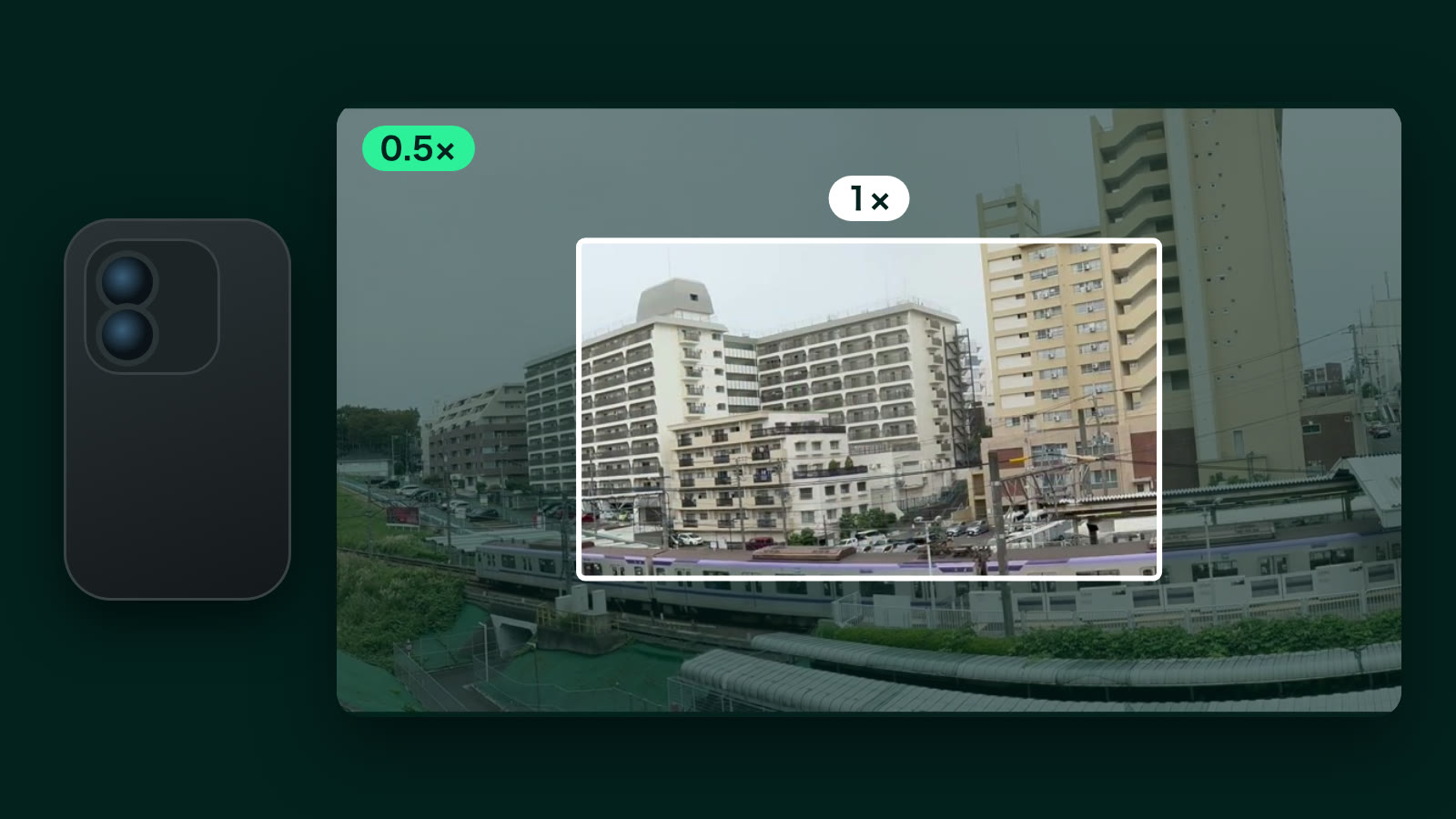
“Record with one phone” records with your iPhone’s wide and ultra wide lenses at the same time and turns them into one video.
- The center is footage from the high-resolution wide lens
- Around it is footage from the ultra wide lens, which takes in more
The frame shown on the recording screen marks the area the wide lens captures sharply. While recording, the screen shows “Ultra wide is recording too,” so you know the surroundings are being kept as well.
Which iPhones work: It works on iPhones that have an ultra wide lens and can record with two lenses at the same time.
Shoot
- In the app, choose “Record with one phone”
- Tap the red button in the center to start recording, and tap it again to stop
- When you see “Recorded,” go to “Combine and review.” To keep shooting, tap “Record another”
While you shoot, you can zoom just like in the regular Camera app. Tap one of the zoom circles, or press and slide your finger to change the zoom.
Here is what sets it apart from an ordinary camera. Even when you zoom in, the recording keeps everything around the frame. And the zoom itself is recorded too — when you zoomed in, and where.
Combine and save
Tap “Combine and review” and the app lines up the footage from the two lenses. Use “Preview 3 seconds” to check a short clip of the result, then “Save to Photos” to keep it in the Photos app.
Pricing works the same way as with two iPhones. Stitches under 3 minutes are free forever, with no limit on how many. For 3 minutes or longer, you can try it free 3 times, and after that you pick an event pass or a one-time unlock.
When the two don’t line up well: Filming distant scenery makes them easier to line up cleanly.
Watch with zoom: plays back the way you shot it, and you can fix it later
Once it is saved, open “Watch with zoom.” The video plays back zooming in just the way you zoomed while shooting.
- Fix the zoom: While it plays, pinch or drag to change where it zooms and how far. Your fixes are saved, and they are still there the next time you open it
- Go back: Tap “Return to recorded zoom,” or the “Orig” circle at the start of the zoom row, to go back to the zoom you shot with. Use “Clear all zoom edits” to start over
- Keep it that way: “Save zoomed video to Photos” makes a new video that zooms just the way you are watching it now and saves it to Photos. The original video stays unchanged
Zoomed in too far or not far enough while shooting? You can fix it afterward. panovi’s idea that “you don’t have to decide how close to get while you shoot” now works with one iPhone too.
“Watch with zoom” also works for videos you open from “Videos on This Device.” Videos with no recorded zoom start from the full view, and you can pinch to zoom in.
One iPhone or two?
- With one iPhone: Handheld, no tripod, for the moment the idea strikes. Quick clips on a walk or a trip, or when you don’t have a second iPhone
- With two iPhones: When you want to keep it even wider and in even more detail. For a whole sports day or an entire game, we recommend two