panovi is an app for making panoramic videos.
Just set two iPhones side by side on a tripod. Their left and right footage joins into one ultra-wide video, edge to edge.
Filming a sports day or a recital is always a trade-off. Zoom out and your kid becomes a speck; zoom in and you lose the whole scene.
panovi removes that choice: shoot wide, zoom in when you watch. Each side records in 4K, so you keep far more detail than one camera covering the same width.


A real stitched result, made the same way as the demos above. It starts fully zoomed out, edge to edge. Zoom in with “Zoom +”, your mouse wheel or a pinch, and drag to pan. You can do the same with your own videos inside the app.

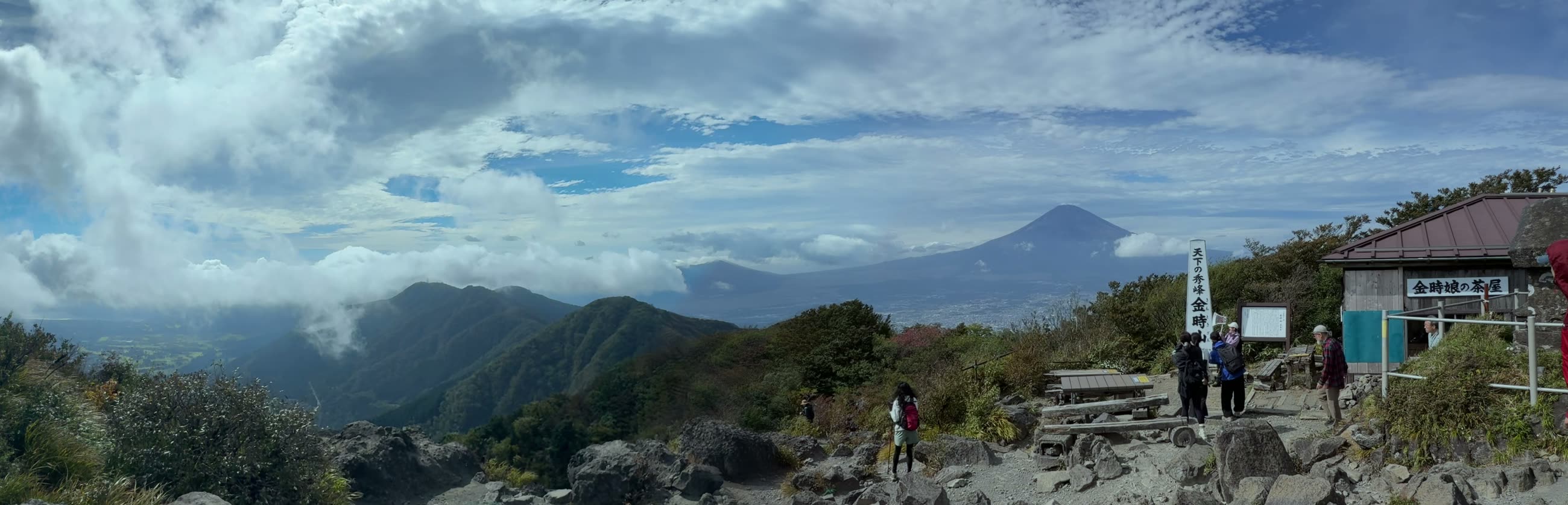
The stitched view from Mt. Kintoki. Loading starts when you press (about 16 s · 19 MB)
A real stitched view from Mt. Kintoki: 4008×1356, about 16 seconds, muted.
Once it sits on the tripod, you never touch it again. Because there is no aiming, none of this happens:
No more checking the screen while you cheer. Film wide, then find the decisive moment later.
From the summit all the way to Mt. Fuji. Views too wide for one camera fit in a single video, drifting clouds and all. Not just for special days — walks and trips too.
The same two clips as the top demo, stitched as is (4032×1380)
A 360° camera spreads its pixels in every direction, so any single direction gets fewer of them and distant subjects stay small. panovi concentrates every pixel where you are looking — wide, yet still big and punchy.
Shoot at the field, stitch in the car or on the train home, and watch on the big screen when you walk in. Publishing to YouTube happens right from the phone too — no computer, no cloud subscription.
Show a QR code on one iPhone, scan it with the other. That is it.
Set the two side by side on the tripod. The screen shows the overlap while you adjust the angle.
Record and stitch. If the shot is shaky, the app steadies it automatically. The finished video saves to your camera roll.
Two videos already in Photos? Stitch them later. If two iPhones recorded at the same time and both videos are in your photo library, “Videos on This Device” → “Stitch 2 from Photos” joins them into one. To steady a single video, use “Make a Stabilized Copy” — the original stays as it is.
The second iPhone can be borrowed. Recording and transfer are free, so a family member’s or friend’s iPhone becomes your second camera the moment they install the free app. No shared Apple ID or iCloud needed — any two iPhones pair by reading a QR code (iOS 18 or later). The only thing that can ever cost money is a stitch of 3 minutes or longer, and only on your device doing the stitching — never on the borrowed one.
Lending or borrowing? Use Guided Access. Guided Access, built into every iPhone, keeps the borrowed iPhone locked to panovi. Nobody can go back to the Home Screen or open Photos or Messages, and notifications are not shown.
The footage also stays on the borrowed iPhone (inside panovi and in its photo library). Stitching happens on your own iPhone, so once the transfer is done, ask the owner to delete it. For long recordings, check the borrowed iPhone’s free space first.
Step-by-step guide: How to lend your iPhone safely — keep it on panovi with Guided Access →
How to build the tripod rig. Take any tripod you own, add a dual bracket plate (Amazon), and screw on two MagSafe tripod mounts (Amazon). The iPhones snap on magnetically, so mounting and removing them on site takes a second. Place the two so the lenses meet near the center — the in-app placement check guides the angle.
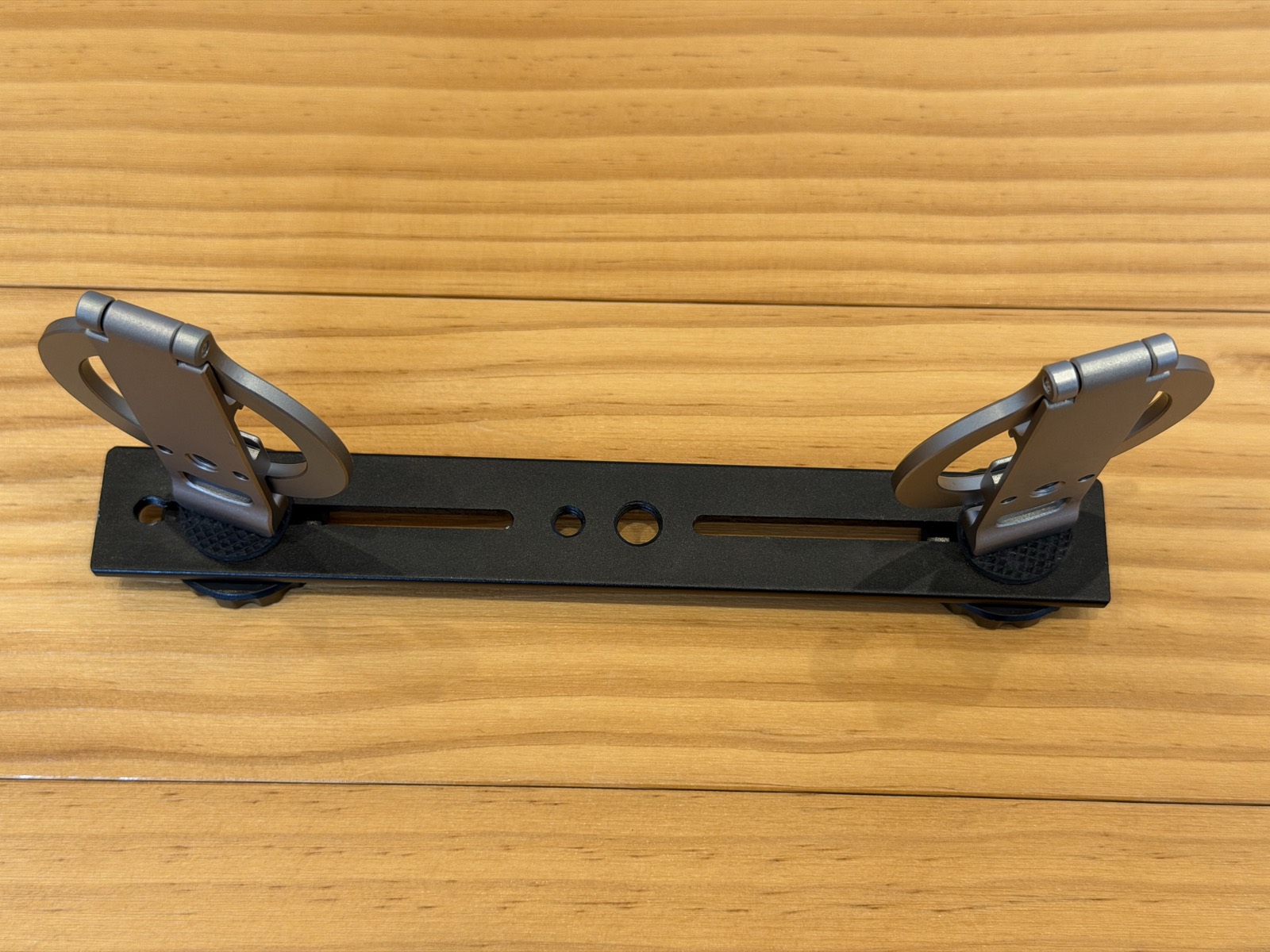
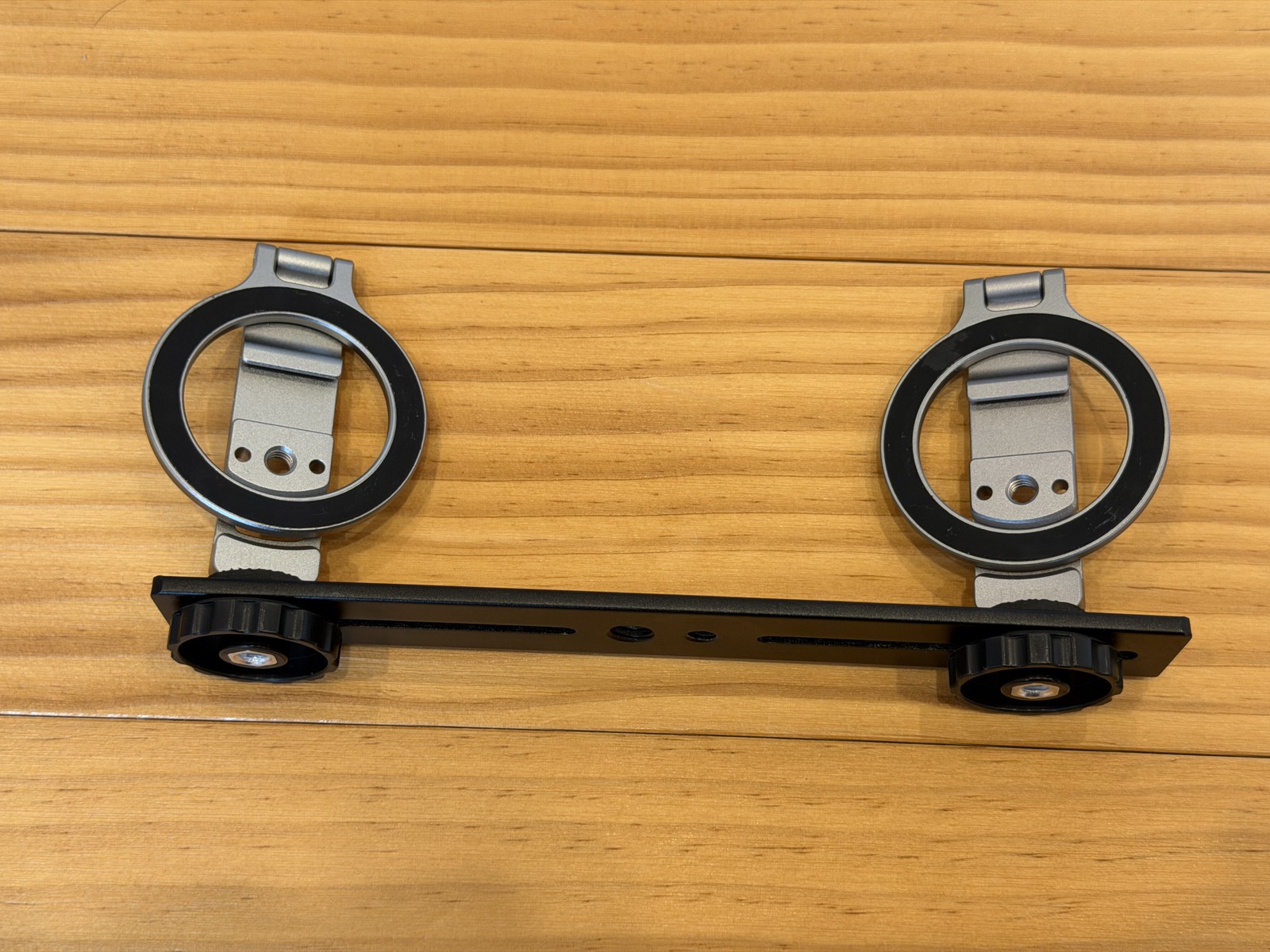
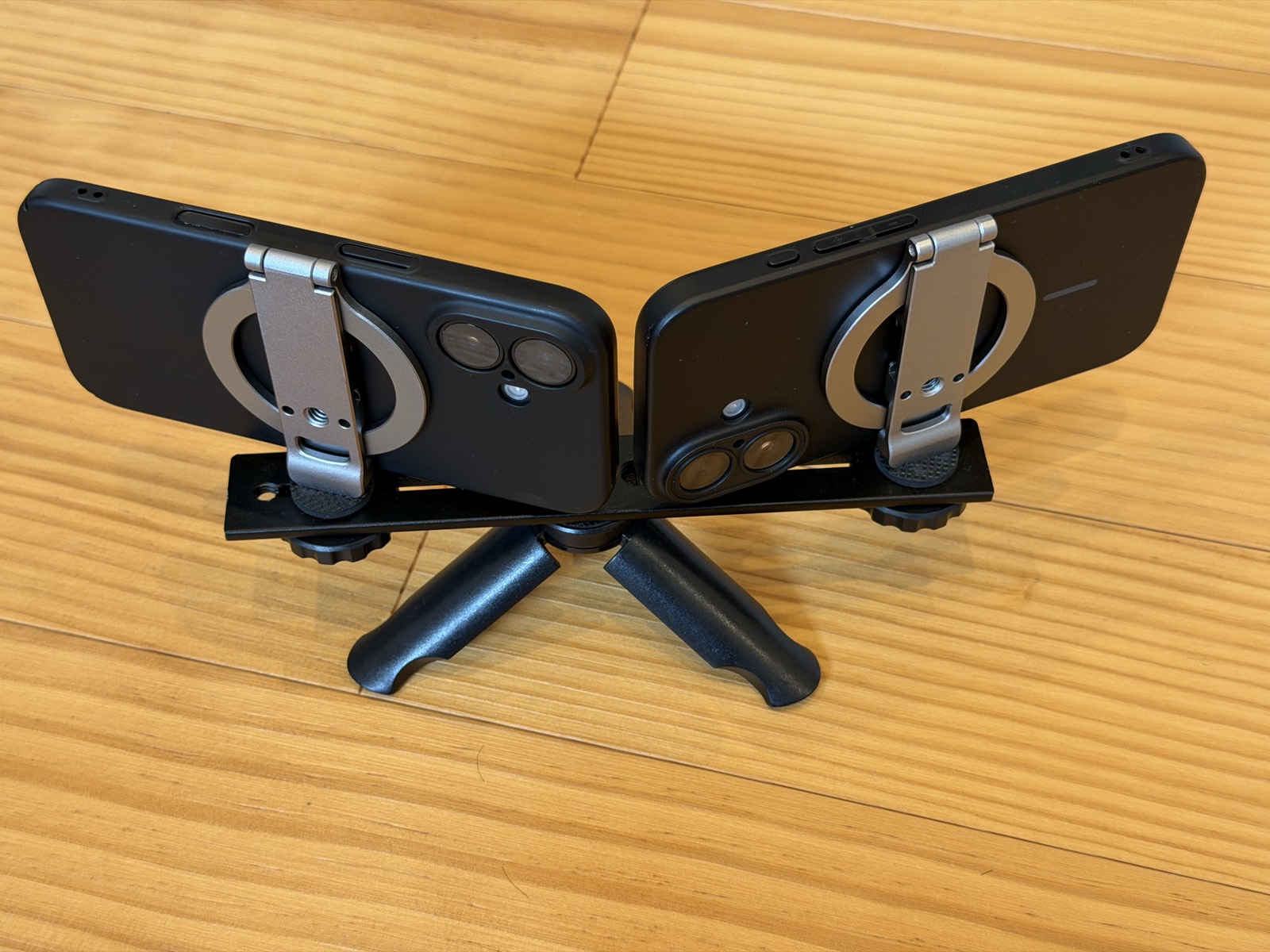
Tap a photo to enlarge.
The only thing that costs money is stitching videos 3 minutes or longer.
| Recording | Free — any length, any number |
|---|---|
| Transfer between iPhones | Free |
| Placement check & 3-second preview | Free |
| Stitches under 3 min | Always free, unlimited |
| Stitches 3 min and longer | 3 free / then an event pass or a one-time unlock |
After the 3 free stitches, pick whichever fits.
Event pass (24 hours) — a ticket for “just this one day”. From the first stitch you use it on, you get 24 hours of unlimited long stitches. The clock starts when you first use it, not when you buy it — buying it the night before costs you nothing. One pass covers a whole sports day, recital or match day.
One-time unlock — pay once, unlimited forever. Not a subscription. The right choice if you will keep using it.
See the App Store for prices. No special gear either — two iPhones you already own, and a tripod.
Yes. The iPhone camera’s Pano mode makes a still photo, but panovi joins the footage from two iPhones side by side into a panoramic video where people and clouds keep moving. Each side is recorded in 4K, so you keep more detail than one phone covering the same width. If you only have one iPhone, “Record with one phone” records with the wide and ultra wide lenses at once.
Yes. Set the tripod in line with the halfway line and place two iPhones side by side, and you get one video with both goals in frame, from kickoff to the final whistle. No one has to pan the camera. Add a third iPhone as a remote to start and stop recording or check the batteries without touching the cameras. Stitches of 3 minutes or longer are free 3 times, then an event pass (24 hours) or a one-time unlock.
No. panovi never charges you on its own. You only pay when you choose to buy an event pass or the one-time unlock yourself, and the App Store always asks you to confirm. There is no subscription and no auto-renewal. Before using one of your 3 free stitches, the app always asks you on screen, and it only counts when the stitched video is saved successfully. A failed stitch never uses one up.
No. All processing happens on the iPhones. No account, no login, and the app never uploads your videos to the internet. It works on fields and mountaintops with no signal.
Two for shooting. A third can act as a remote in your hand: start and stop recording, check the seam, see each camera’s battery and free space, and pull videos over (optional). You can also try panovi with a single iPhone first — sample videos are built in, so you can see what a stitched result looks like.
No. Different models work — the app automatically picks a lens both can use.
Yes, to hold the two phones side by side. Use one that can carry both; the trick is getting the lenses close together. With “Record with one phone”, which records with the wide and ultra wide lenses of a single iPhone, you can also shoot handheld without a tripod.
The stitch can be split at the bump and recalibrated. If a result looks off, retry options are right on the screen.
There is no recording limit — as long as battery and storage last. A power-save mode can turn the screen black while recording to stretch the battery. Only the stitch length affects pricing.
From your first video to tips for travel and sports.
Stitches under 3 minutes are free forever. Try it with the two iPhones you have.
 panovi